A trim can require new encoding even when the picture, color and size are unchanged. The selected start and end may fall between the boundaries the compressed file can copy cleanly. Clipper Cowboy’s exporter is designed to decide how much of a selection to encode after looking at the file’s keyframes.
A keyframe can be decoded without relying on other frames. That independence makes it useful when entering a compressed sequence, as described in MDN’s video documentation. A frame chosen for an edit may fall between those points.
In a stream copy, the exporter transfers compressed media without decoding and encoding it again. Seeking to a chosen time is less straightforward: FFmpeg’s seeking documentation explains that input seeking often lands at an earlier seek point. During transcoding, the extra material can be decoded and discarded; a stream copy can retain it. That distinction matters when the opening frame of a shot has to be deliberate.
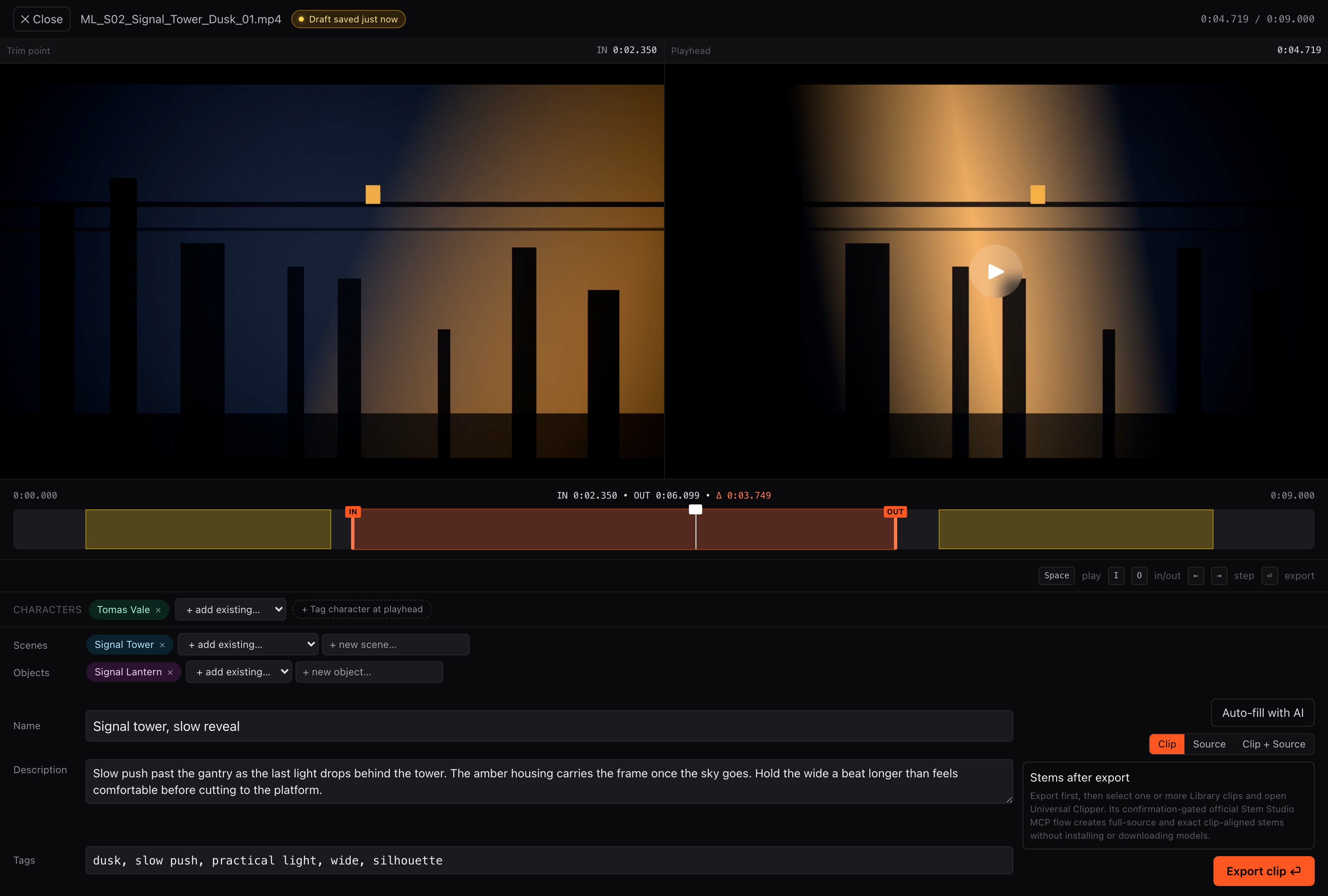
Clipper Cowboy has in and out controls for choosing a shot within a longer video. The earlier article about its shot library covered finding and describing those selections. Exporting one introduces another decision: which parts of the selected interval can be copied, and which need fresh encoding?
The exporter first reads the video information and keyframe timestamps. If it treats both selected endpoints as aligned with suitable boundaries, it attempts a stream copy of the selection. This is the shortest route through its decision tree. It also treats the beginning and end of the source as possible boundaries, rather than requiring an interior keyframe at each end.
When the endpoints do not fit that route, the exporter looks for a middle it can copy. It finds the next keyframe after the selected start and the previous keyframe before the selected end. The intended result has up to three pieces: an encoded opening, a copied middle and an encoded ending. An edge that does not need encoding can be omitted. The pieces are then joined into one output.
Consider a hypothetical file with usable keyframes at zero, two, four, six and eight seconds. Choose a trim from one second to seven seconds. The opening from one to two seconds needs encoding; the middle from two to six can be copied; the ending from six to seven needs encoding. Those numbers illustrate the division of work. They are not measurements from an export or a claim that every file has keyframes two seconds apart.
Now shorten the selection to three through five seconds in that same hypothetical file. The next boundary after the start and the previous boundary before the end both fall at four seconds. There is no separate middle to copy. Clipper Cowboy’s exporter handles that case by encoding the selected interval in one pass, avoiding overlapping opening and ending segments. A short selection can therefore require encoding throughout even when a longer selection from the same file has a copyable middle.
The boundary checks also allow a small timing tolerance. An endpoint counted as aligned by the exporter is not, by itself, proof that the delivered file starts on precisely the frame the editor selected. The implementation describes a plan for producing the cut. The resulting frames and timestamps still need to be checked.
Audio needs its own review. In Clipper Cowboy’s edge-encoding paths, audio can also be encoded again. A description such as “copied middle” says where the exporter intends to avoid video encoding; it does not establish that every sound sample or every byte in the output stayed unchanged. An export report should distinguish the work done to video from the work done to audio.
For a demanding cut, inspect the exported opening and closing frames beside the chosen source frames. Watch across the joins between encoded and copied sections, then listen there for a gap, repeated sound or shift in sync. Check the output duration as well, and keep the original selection available for comparison.